How to use InkBeepAI
Three steps. It types into the apps you already use, with nothing to set up per program — windows running as administrator are out of reach. Not dictating in English? Right-click the InkBeepAI tray icon, choose Language and pick yours once; it stays chosen.
The whole thing
Click where you want the text
An email, a document, a chat box, a search field. InkBeepAI types wherever your cursor already is.
Press the hotkey and speak
Press once and let go — nothing to hold down. A small orb appears while it listens.
Press it again
Your words are typed in. The orb shows Transcribing… first — that is the recognition running on your own machine.
While it is listening
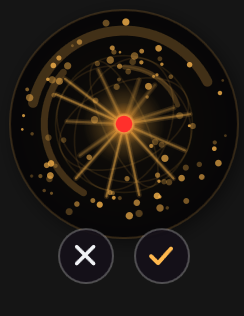
- ✓Tick — finish and insert. Exactly what pressing the hotkey again does.
- ✕X — throw the recording away. Nothing is inserted.
- EscEsc — the same as the X, without reaching for the mouse.
- ⌛If you walk away, it stops on its own after the time set in Settings and inserts what it heard.
You never have to use the buttons. The hotkey and Esc do the same two jobs.
Nothing got typed?
Almost always the wrong microphone. Windows keeps two separate defaults and hands applications the one it calls the “communications” device — which is often a webcam or a headset you are not speaking into.
Read the message
If the orb turned red, it names the microphone it actually used. If that is not the one you are speaking into, that is the whole problem.
Choose it yourself
Right-click the InkBeepAI tray icon → Settings → Microphone, and pick your microphone by name instead of leaving it on the default.
Still stuck?
Email support. There is a log at %APPDATA%\Beep\logs that says what happened — no audio and no transcribed text is in it.
Make it yours
Your language
Right-click the tray icon → Language, or Settings → Language for the full list. English is the default, and whatever you pick stays picked.
Change the hotkey
Settings → Hotkey. Pick another combination, or record your own — including one sent by a foot pedal.
Prefer holding a key?
Settings → Activation → Hold to talk. Then you hold the hotkey while speaking and release to insert.
Teach it your phrases
Settings → Replacements. Say “my email id” and have your actual address typed. Expanded on your machine, never sent anywhere.
Where your voice goes
Nowhere. Recognition runs on your own PC, the audio is discarded once it has been turned into text, and no transcript is ever written to disk. InkBeepAI talks to one server, ours: once when you activate your key, then a licence check every two weeks, each carrying your key and up to three anonymous hardware hashes — never audio, never text. Turn off your Wi-Fi and keep dictating — that is the test, and here is how it works.